Appearance
How to Make a Genogram in Google Docs
You can make a simple genogram in Google Docs by using the built-in Drawing tool to place shapes, draw lines, and add labels by generation. It works for basic family diagrams, but every symbol, line, and legend item has to be handled manually. This guide walks through the full Google Docs workflow step by step.
Before You Start
A few things worth knowing before you open Google Docs:
- Gather your family information before you start drawing. If you don’t know what information to include, see How to Make a Genogram first.
- Google Docs has no genogram-specific templates; so every element you need has to be placed manually. That's manageable for a simple diagram, but if you're building something more complex, it becomes tedious quickly.
For standard genogram symbols, relationship line logic, and a diagram you can edit without redrawing from scratch, How to Make a Genogram Online covers a purpose-built alternative using the EasyGenogram tool.
How to Make a Genogram in Google Docs: Step by Step
These are eight steps on making a genogram in Google Docs.
Step 1: Open the Drawing Canvas
Go to Google Docs and create a blank document.
Click Insert > Drawing > + New.
The canvas opens in a pop-up window.
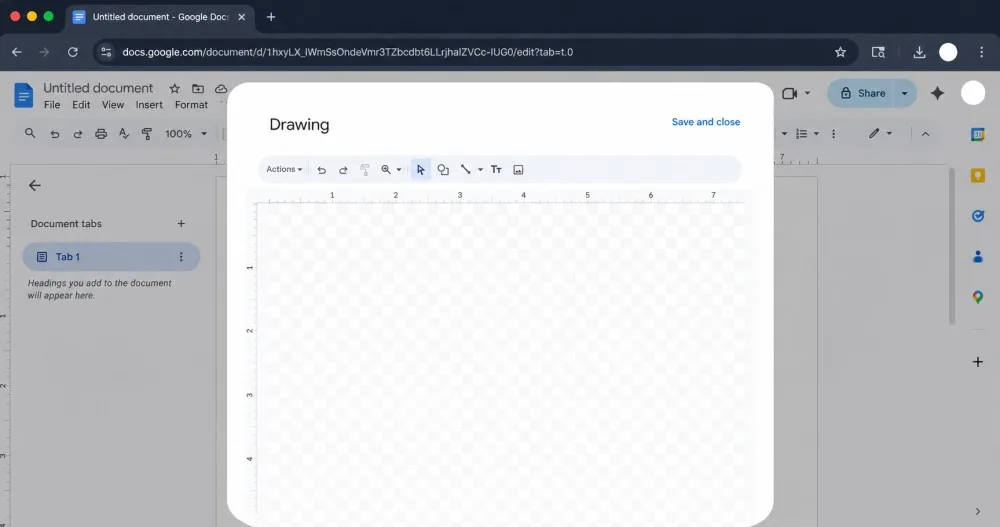
This is where you build everything instead of the document body.
This is because you need a wide canvas; the default portrait view cuts off most genograms horizontally.
But even with this, you will quickly run out of space if you’re building a complex family.
Step 2: Place the 1st Generation
Before drawing any lines, place all shapes first.
In Google Docs, lines don’t follow shapes when you move them. So if you reposition a shape after connecting it, the line stays put and you'll need to redraw it.
That’s why you need to get the layout right first.
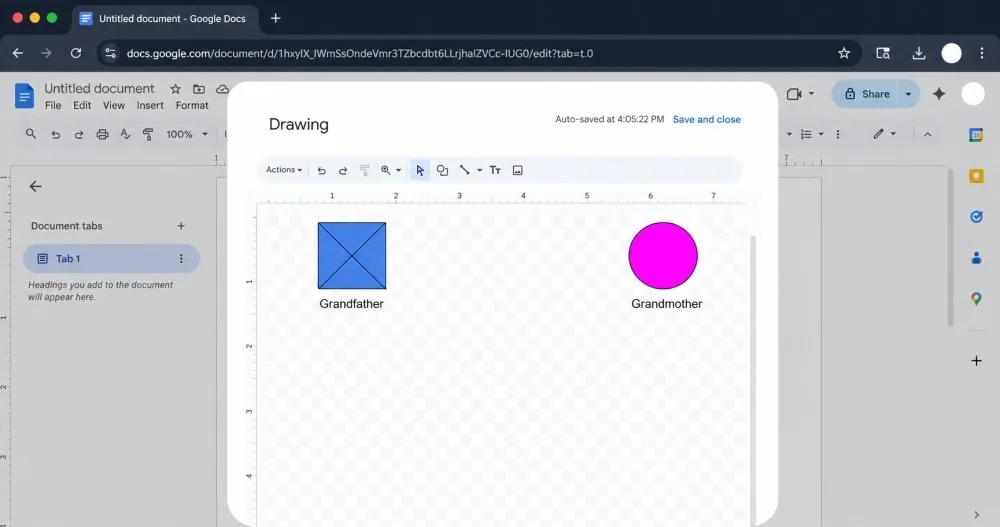
Go to Shape tool > Shapes > Rectangle for grandfather (male). Hold Shift while dragging to get a square.
Go to Shape tool > Shapes > Oval for grandmother (female). Hold Shift for a perfect circle.
Also, change the default colors to blue (males) and pink (females).
Place them in the top third of the canvas, with enough horizontal space below for their children.
Go to the Text box to add a label (e.g., Grandfather, Grandmother) under their shapes.
For a deceased grandparent: draw two diagonal lines over the shape using the Line tool to form an X.
Step 3: Add the Second Generation
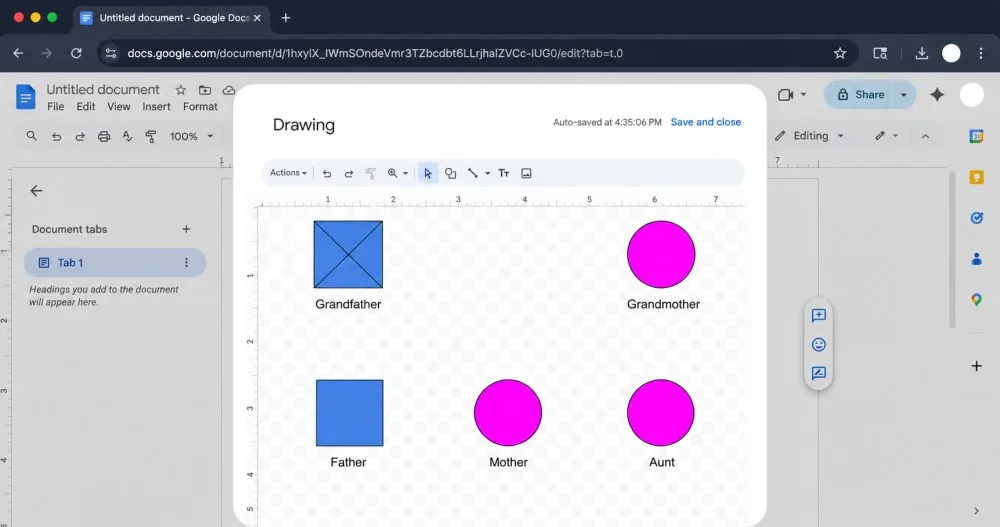
Place the offspring below the grandparents on the same horizontal level.
Leave room on either side for their partners.
To keep sizes consistent: duplicate the square from Grandfather (Ctrl/Cmd + D) for every other male. Do the same for circles.
Thus:
- Father goes on the left, Aunt to his right.
- Mother goes to his right also, in between him and Aunt.
Step 4: Add the Third Generation
Place children below each couple at the same horizontal level across the canvas, oldest on the left.
To mark the primary person: click their shape > Border weight > 4px.
Step 5: Draw Structural Lines
Now that all the shapes are well-placed, connect them.
Use the line tool to draw:
- Horizontal line (marriage) between each couple.
- Vertical line down from the midpoint of each couple's line (biological children).
- Horizontal sibling bar connecting all children of the same parents (in this case, Father and Aunt).
- Vertical line down from the sibling bar to each child.
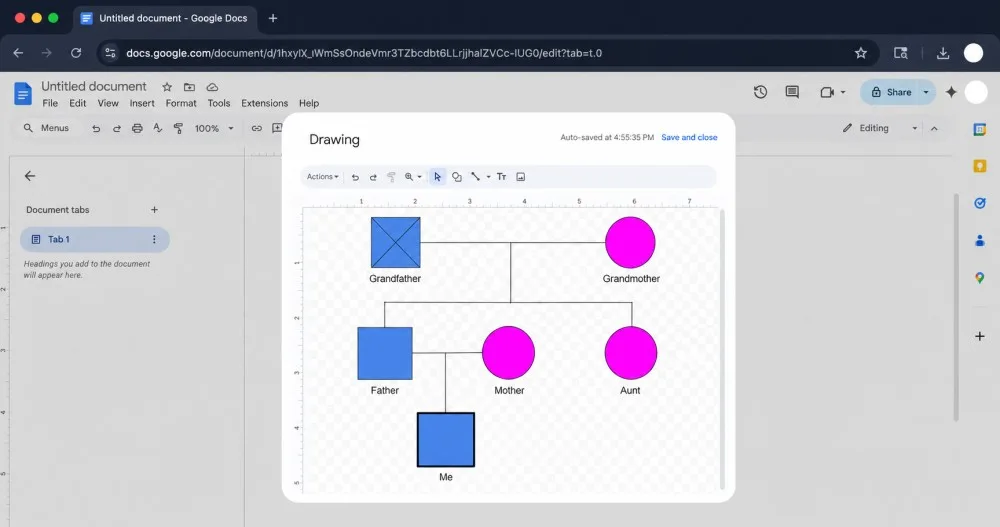
Step 6: Add emotional relationship lines
Draw emotional lines after the structure is complete.
Google Doc’s line style options are limited, so to depict a conflict between Grandfather and Aunt in this instance, we will use this workaround:
After drawing a line between Grandfather and Aunt, use the Fill Color tool to change the color to red, then click Border Dash to change the line type to dashed.
Depending on the emotional relationship type you want to depict, the lines will vary.
Read the full guide on Genogram Symbols to learn the different types of emotional relationship lines.
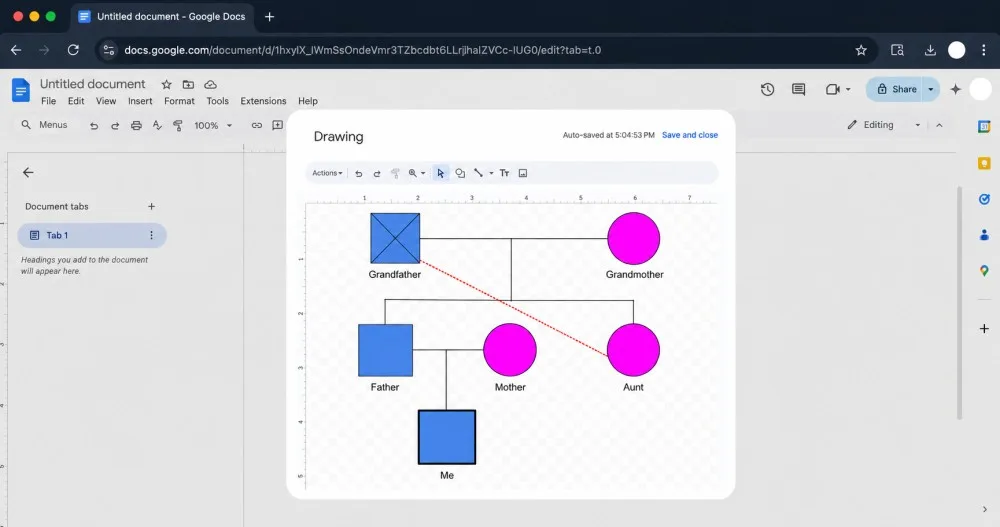
Step 7: Add a Legend
Google Docs has no built-in genogram legend, so add one manually.
First, Save and Close your drawing, because there won’t be enough space to add the legend in the canvas.
The drawing then embeds in the document. To edit it later, click the image and select Edit. To resize it, drag the corners after embedding.
Place your cursor in a corner of the document. Keep it short:
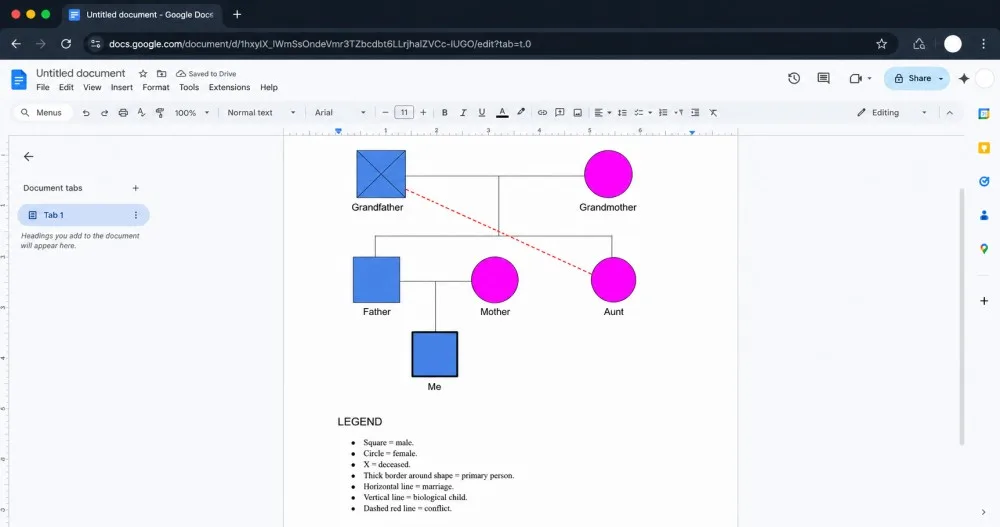
Step 8: Review and Export
Before you export, run through this checklist to avoid the common mistakes in making a genogram:
- All shapes are the same size.
- Male left, female right in every couple pair.
- Children in birth order, oldest on the left.
- Each generation is on the same horizontal level.
- Deceased persons are marked with an X.
- The primary person has a thicker border.
- Legend is included.
On what to include, the level of detail depends on what the genogram is for:
- For a class assignment: names and ages below each shape are enough. Add marriage and divorce years on the relationship lines if the assignment asks for dates.
- For a therapy or social work context: add health conditions, occupations, and significant events as text near each shape. Google Docs doesn’t support medical markers on shapes directly, so a text box beside the shape as a note is the workaround.
To export your genogram, go to File > Download > Choose your preferred format.
Building a genogram in Google Docs works, but everything in this guide; the canvas space constraints, the lines and shapes workaround, the manual legend, among others, all exist because Google Docs wasn’t built for this.
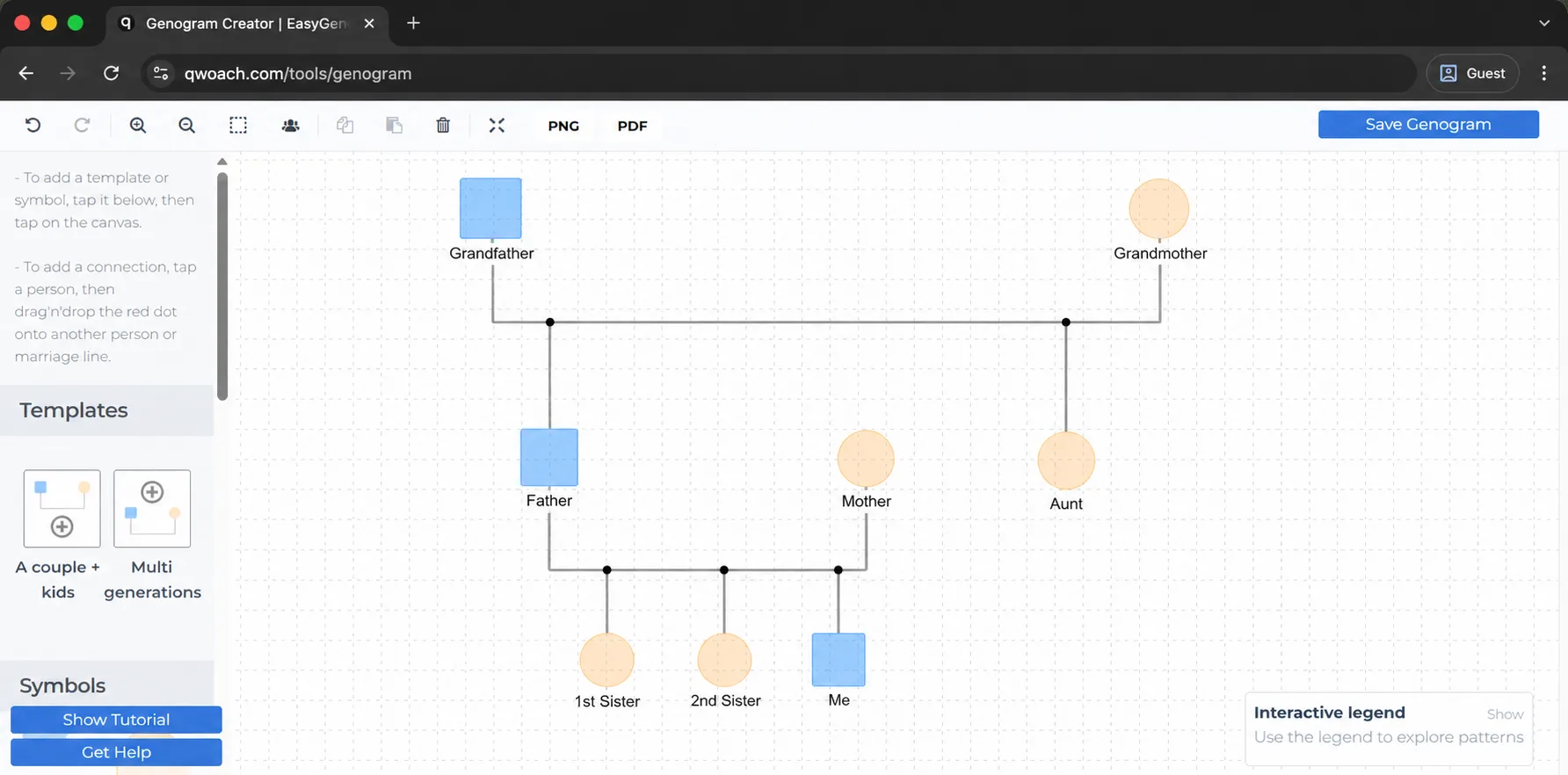
The diagram below is the same family built using the EasyGenogram tool.
Simple 3-Generation Genogram Example
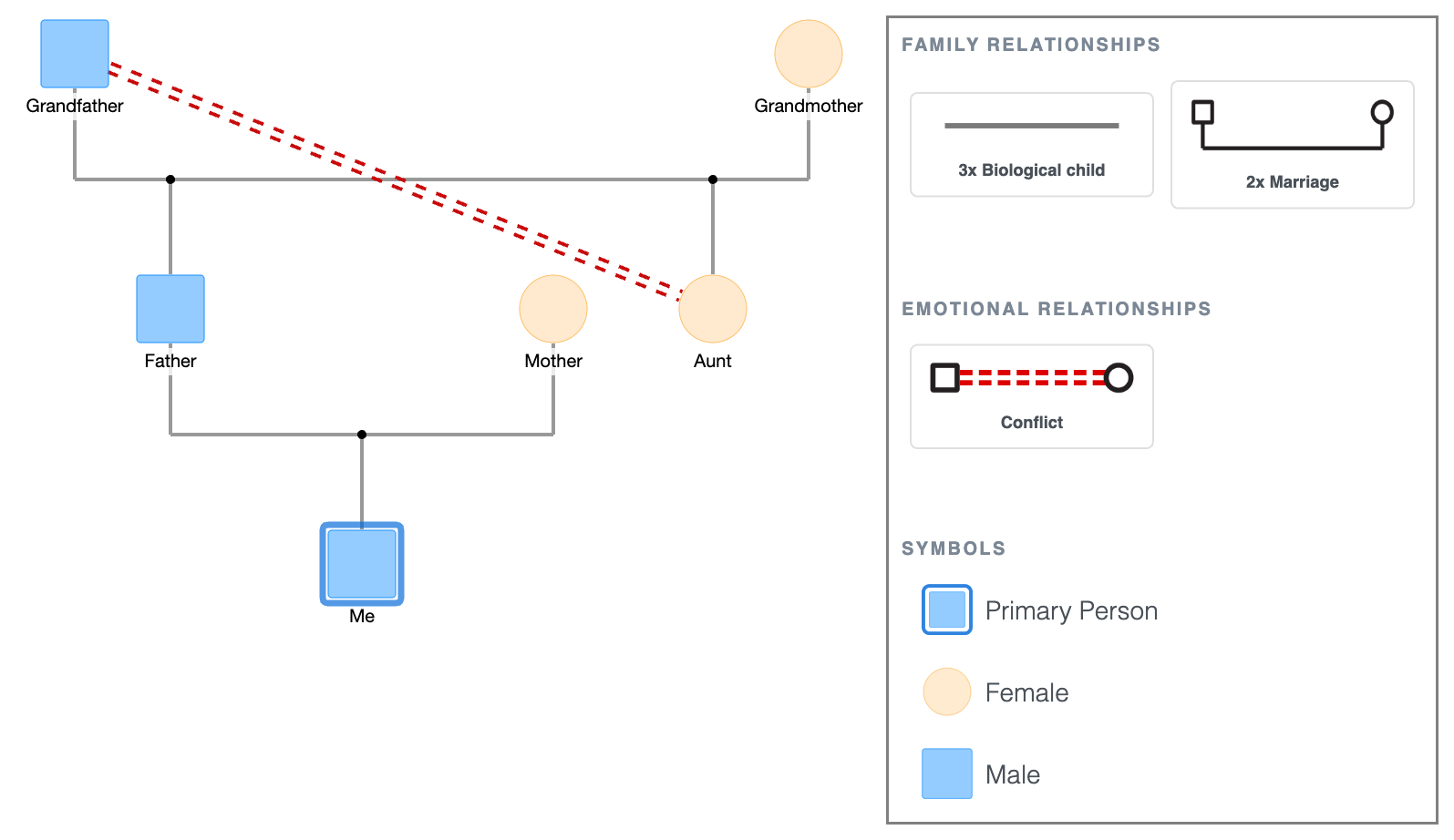
Notice how the symbols are already there, the lines attach to shapes, the legend generates automatically, and the layout rules are built in.
If you’re going to build more than one genogram, build a complex family genogram, share it with someone else, or come back to edit it later, using EasyGenogram is the faster and easier option.
Simple 3-Generation Genogram Example
Explore this genogram and adapt it to your needs.
FAQ
Does Google Docs have a genogram template?
No. Google Docs doesn’t include genogram templates in its template gallery. You can find basic templates shared as Google Drive links, but these are usually just pre-drawn shapes without proper genogram notation. Building from scratch using the Drawing tool gives you more control.
What is the easiest way to make a genogram?
The easiest way to make a genogram is to use a dedicated genogram tool. EasyGenogram is a genogram-building tool that has all standard symbols built in, and you can export as PNG or PDF when done. If you need the genogram inside a Google Doc, the fastest approach is to build it in EasyGenogram, export the PNG, and insert it with Insert > Image.
Can I make a tree diagram in Google Docs?
Yes, using the same Drawing tool covered in this guide. Go to Insert > Drawing > + New, then use shapes and lines to build any tree structure. The process is the same whether it’s a genogram, a family tree, or an org chart.
Can I make a genogram in Google Docs on my phone?
The Google Docs mobile app doesn’t support the Drawing tool. You can view an existing drawing, but you can't create or edit one on a phone. Use a desktop or laptop browser to build the genogram, then access the document on your phone.
Is there a free genogram maker?
Yes. EasyGenogram is free to use. You can build from scratch or edit an existing example, then export as PDF or PNG. It includes all standard genogram symbols, including emotional relationship lines and medical markers that aren't available in Google Docs.
Sources
- Genograms: Assessment and Treatment (4th ed.)
- Genograms for Psychotherapy
- Focused Genograms: Intergenerational Assessment of Individuals, Couples, and Families (2nd ed.)
Related
How to Make a Genogram in Word