Appearance
How to Make a Genogram in Canva
You can make a genogram in Canva by placing shapes for each person, drawing manual relationship lines, and adding labels and a legend yourself. It works for simple family diagrams, but every symbol and connection has to be built by hand. This guide shows the full Canva workflow using a 3-generation genogram example.
Before You Start
A few things worth knowing before you open Canva:
- Canva has no genogram-specific templates; the available family tree templates available are decorative and don’t follow standard genogram conventions.
- Every element you need, namely shapes, lines, labels, and legend, has to be placed manually, and because lines don’t attach to shapes, moving someone after you’ve drawn connections means fixing every line tied to them.
- That's manageable for a simple diagram, but if you're building something more complex, it becomes tedious quickly.
For standard genogram symbols, relationship line logic, and a diagram you can edit without redrawing from scratch, How to Make a Genogram Online covers a purpose-built alternative using the EasyGenogram tool.
How to Make a Genogram in Canva: Step by Step
These are six steps on making a genogram in Canva.
Step 1: Set up your canvas
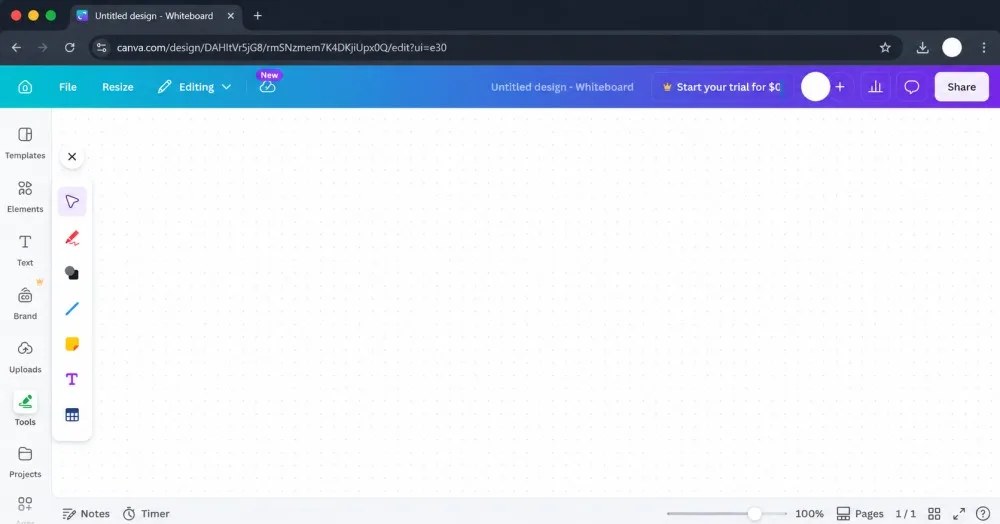
Open Canva and create a new design.
Select Whiteboard; it gives you an unconstrained workspace that won’t cut off a wide diagram. Alternatively, you can use a custom size and set it wider than it is tall.
Genograms grow sideways, so portrait layouts run out of room quickly.
Before placing anything, zoom out enough to see the full working area.
Step 2: Place shapes for each person and add text labels
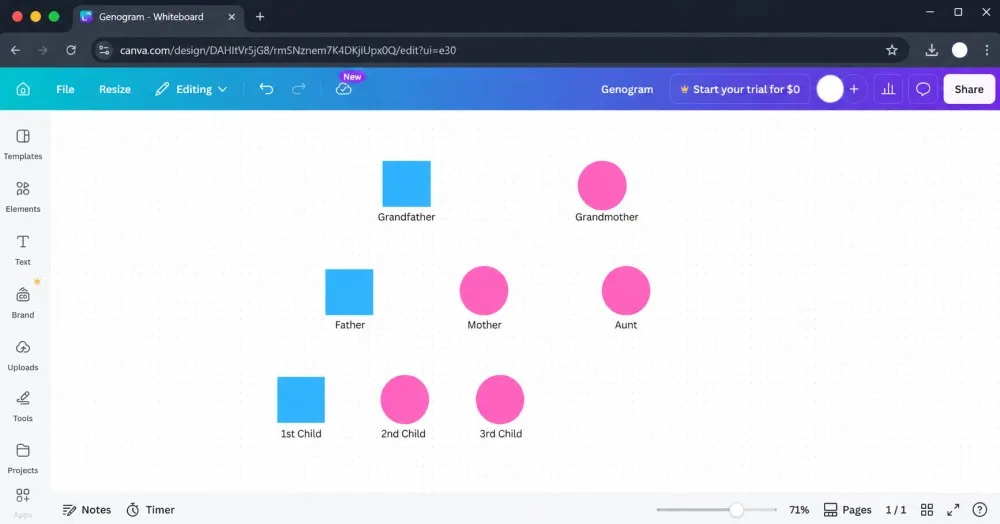
Go to Elements → Shapes and add squares for males and circles for females.
Place every person as a shape first, before drawing any lines.
Arrange them in rough generation bands:
- 1st level: grandparents.
- 2nd level: parents.
- 3rd level: children.
To keep sizes consistent: add one square, set it to a fixed size, then duplicate it (Ctrl/Cmd + D) for every other male. Do the same for circles.
Change their colours from the default to blue (for males) and pink (for females).
For each person, include their name. Double-click any shape to type inside it, or place a separate text box below the shape. Use one approach consistently across the whole diagram.
Keep font size the same across all labels; mismatched text reads as inconsistency even when the shapes are properly aligned.
For this walkthrough:
- Grandfather (square) and Grandmother (circle) at the top.
- Father (square) and Aunt (circle) in the middle.
- Father's wife, Mother (circle), to his right, still in the middle row.
- Three children at the bottom below Father and Mother.
Step 3: Mark the primary person
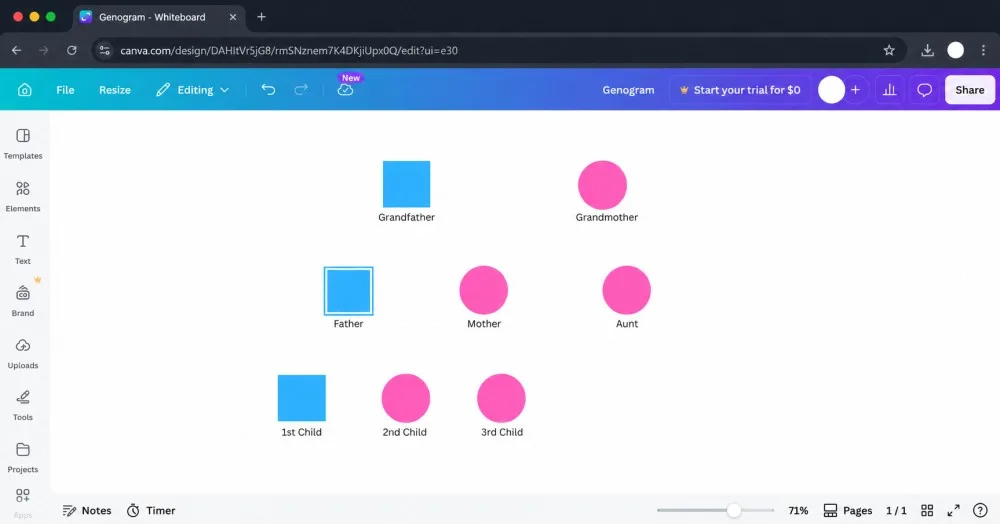
The primary person gets a double outline.
Canva has no built-in double-outline shape, so build it manually:
- Duplicate Father’s square.
- Make it slightly larger than the original.
- Set it to no fill with a matching border color.
- Layer it behind the original.
- Group both shapes so they move together.
Step 4: Draw the structural lines
Go to Elements → Lines and use the straight line option.
Avoid elbow and curved lines; they’re harder to control.
Draw in this order:
- First generation: Solid horizontal marriage line between Grandfather and Grandmother.
- Second generation: Vertical drop line from the midpoint of the marriage line down to a horizontal sibling bar. Father hangs from the left of this bar, Aunt from the right. Mother connects to Father's right with a solid marriage line.
- Third generation: Horizontal sibling bar below Father and Mother, with vertical lines dropping to each child. Birth order left to right, oldest on the left.
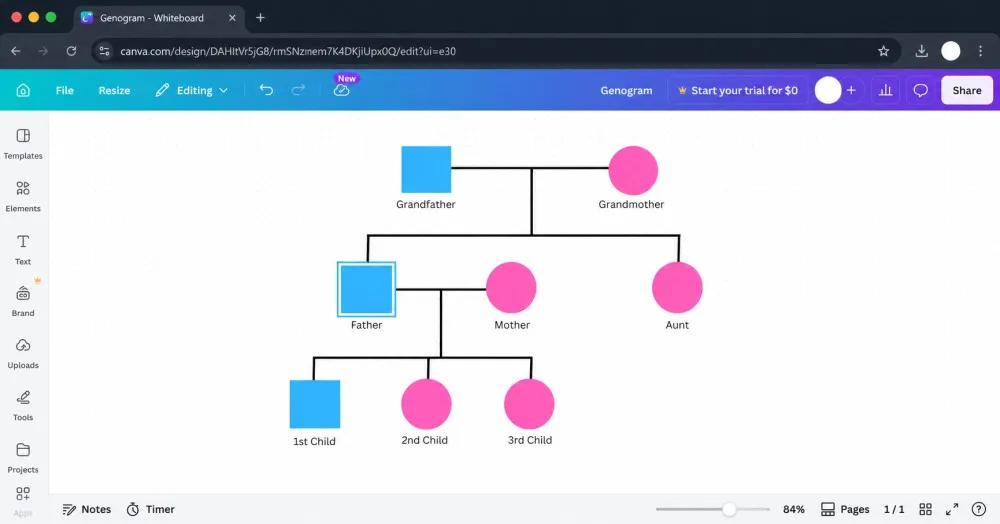
Lines in Canva don’t snap to shapes, so zoom in when placing endpoints; gaps look fine at normal zoom but become obvious once you step back.
Step 5: Add emotional relationship lines
Draw emotional lines after the structure is complete.
With all shapes and structural lines in place, you can see where an emotional line will cross existing connections and route it cleanly.
Canva’s line style options are limited, so use these workarounds:
- Conflict: a dashed red line between the two people.
- Closeness: two parallel lines close together in green.
- Cutoff: a dashed line with small perpendicular tick marks drawn on top.
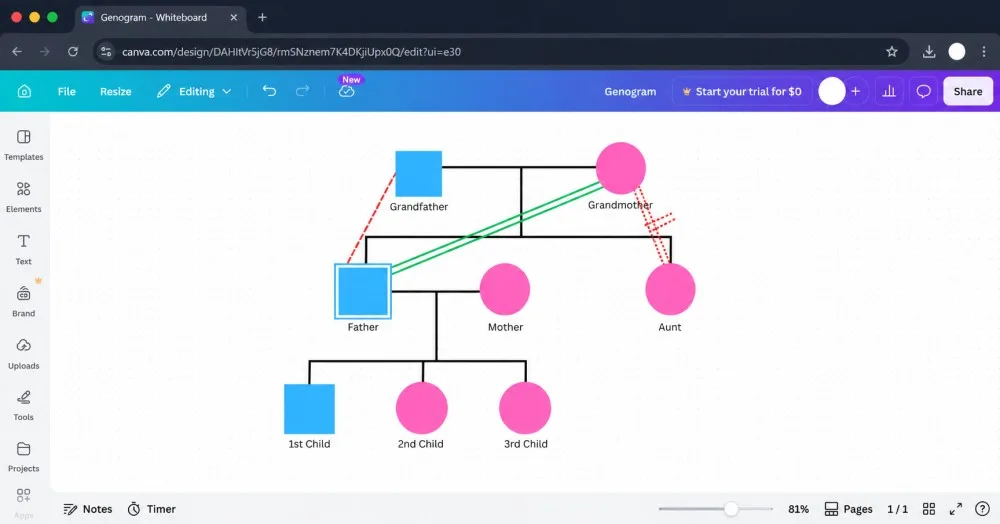
Keep emotional lines visually distinct from structural lines; use color or a clearly different line style so the two don’t blur together.
Step 6: Build the legend
In one corner, add a box listing every symbol and line type you used and what each one means. Canva has no auto-legend, so this is fully manual.
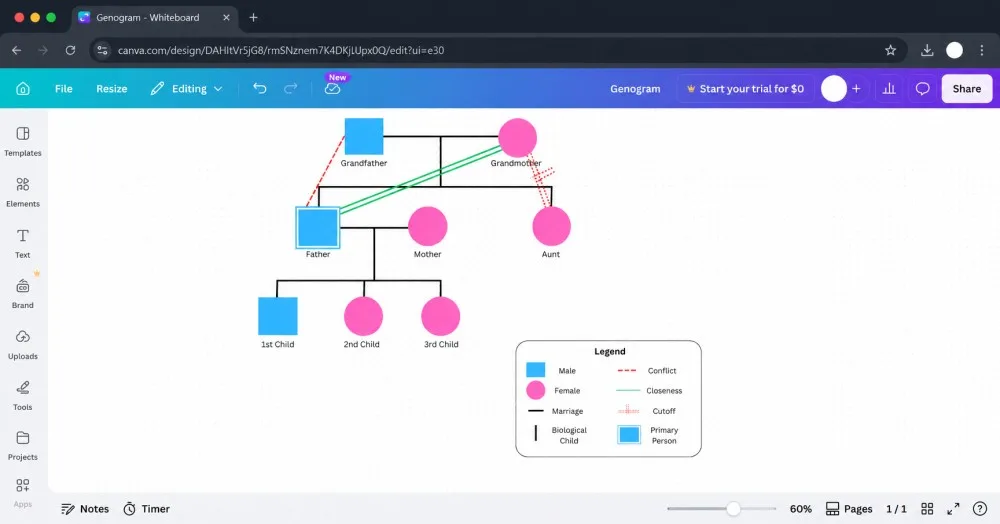
Building a genogram in Canva works, but everything in this guide; the double outline workaround, the manual legend, the lines that don’t follow shapes when you move them, the endpoints you have to zoom in to check, all exist because Canva wasn’t built for this.
The diagram below is the same family built using the EasyGenogram tool.
Simple 3-Generation Family Genogram Example
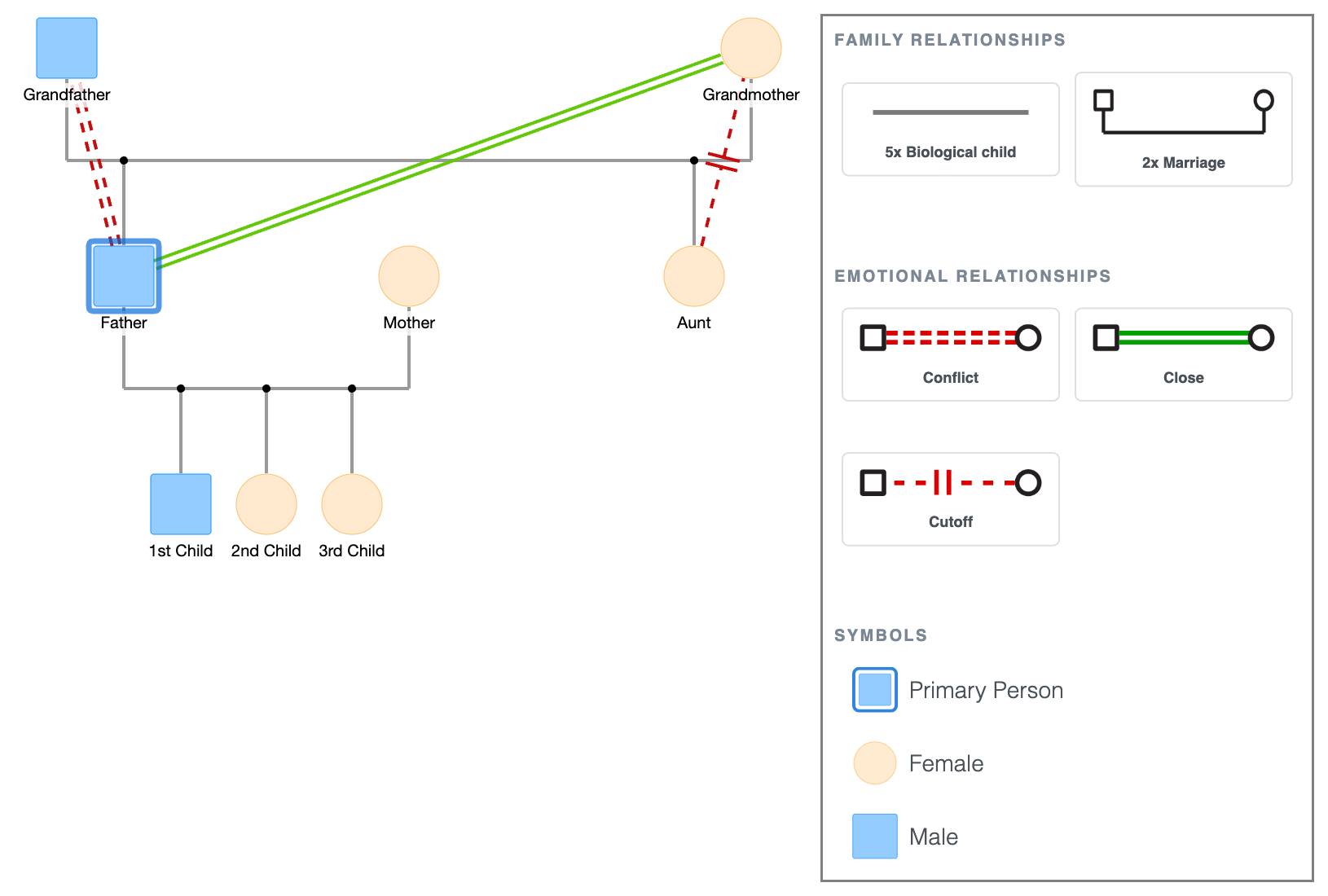
The symbols are already there, the lines attach to shapes, the legend generates automatically, and the layout rules are built in.
If you’re going to build more than one genogram, build a complex family genogram, share it with someone else, or come back to edit it later, using EasyGenogram is the faster option.
Simple 3-Generation Family Genogram Example
Explore this genogram and adapt it to your needs.
After You Create It
Before you call it done, check for the mistakes that come up most often, these include:
- Portrait orientation that runs out of horizontal space mid-diagram.
- Lines drawn before all shapes were placed so connections drift when you move someone.
- Shapes that vary in size because each one was resized manually instead of duplicated.
- Line endpoints with visible gaps that only show up in the exported PDF.
- Missing legend that leaves the reader guessing.
On what to include:
- For a simple class assignment, details such as names, ages, structural lines, and a legend are enough; add emotional lines only if the assignment requires them.
- For clinical use, add emotional lines, health conditions, and cause of death. Keep condition labels to two or three words on the shape itself. Use a notes section below the diagram for anything that doesn’t fit cleanly.
Step back and look at the whole picture, and run through this checklist before exporting:
- Do health conditions appear on one side of the family or across both?
- Do relationship dynamics repeat across generations?
- Where are the gaps, and what do they tell you?
- Does the diagram answer the question you started with, or has building it surfaced a different one?
If this was for a class, that last question is often what the assignment is actually asking for.
FAQ
Can you create a genogram on Canva?
Yes, but not with a dedicated tool. Canva has no genogram-specific templates or symbol library, so you have to build everything manually using shapes, lines, and text. It works best for a simple diagram with not much detail.
How do I make a genogram in Canva for free?
Canva’s free tier includes the shapes, lines, and text tools used in this guide. You don't need a paid plan to follow these steps.
What is the difference between a genogram and a family tree?
A family tree shows lineage; names, dates, and who descended from whom. A genogram adds relationship quality, health conditions, behavioral patterns, and significant life events. A family tree tells you who your family is; a genogram shows how it works across generations.
What is the easiest way to make a genogram?
The easiest method is using a tool built specifically for genograms. EasyGenogram is a genogram-building tool that has the symbols, relationship lines, and layout conventions already in place; you only need to add people and connections rather than building the visual grammar from scratch.
What is the best genogram maker software?
EasyGenogram is a free, browser-based, and purpose-built genogram maker; no installation, it exports as PDF or PNG, and follows standard genogram conventions out of the box.
Sources
- Genograms: Assessment and Treatment (4th ed.)
- Genograms for Psychotherapy
Related
How to Make a Genogram (Step-by-Step Guide)